

With Visual Studio App Center shutting down on March 31, 2025, developers relying on CodePush for over-the-air (OTA) updates need a smooth migration plan.
AppsOnAir provides a drop-in replacement for CodePush, allowing you to continue pushing real-time updates with minimal effort.
Follow this step-by-step guide to migrate your CodePush implementation to AppsOnAir quickly and efficiently.
Step 1: Install the AppsOnAir CodePush CLI
Start by installing the AppsOnAir CodePush CLI tool globally:
Using npm:
npm install -g @appsonair/codepush-cli
Using Yarn:
yarn global add @appsonair/codepush-cli
Step 2: Set Up Your AppsOnAir Account
- Sign in to the AppsOnAir Portal.
- Create a Workspace – This is where you'll manage your apps and deployments
- Add your App – Give your app a name to set it up for CodePush updates.
Step 3: Generate New Deployment Keys
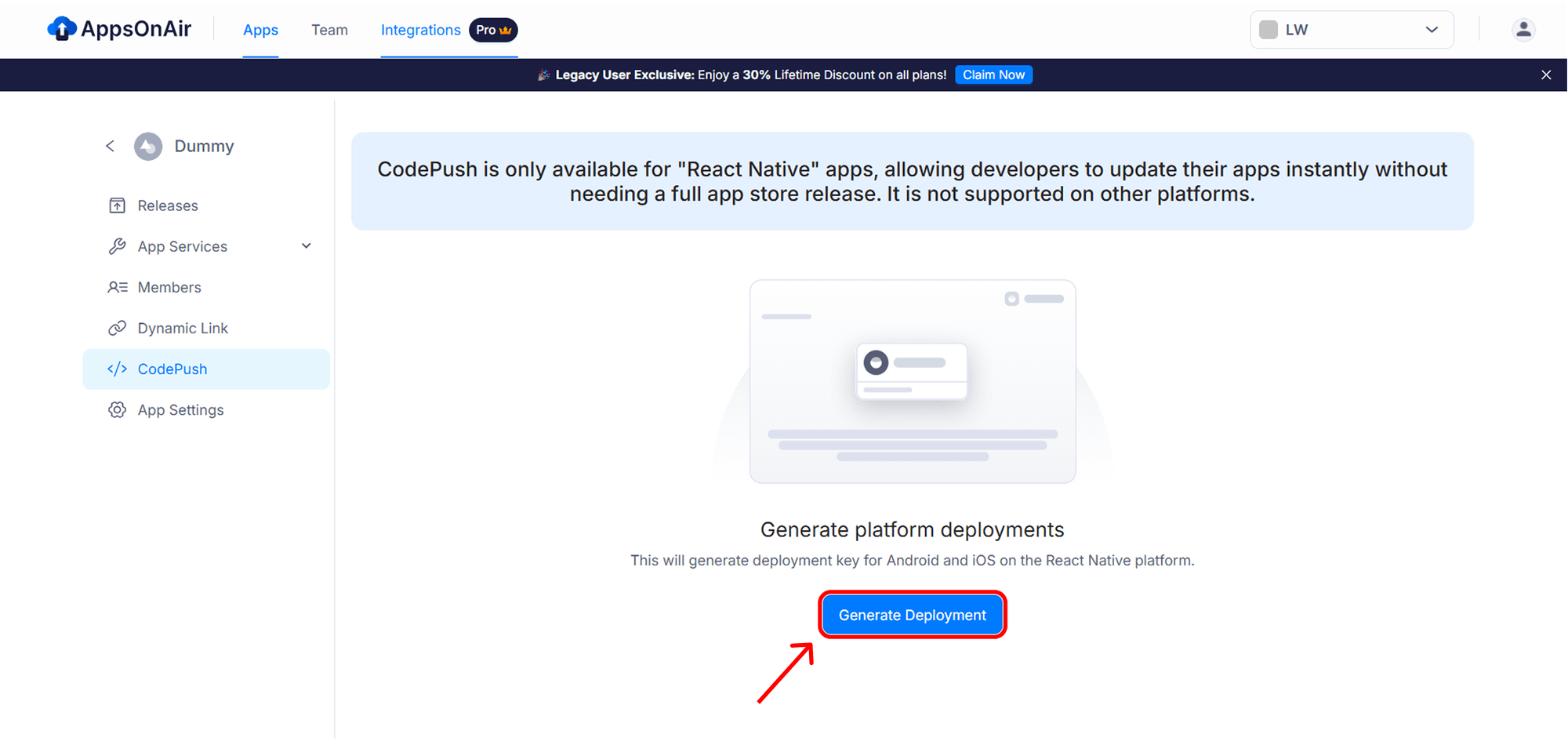
1. In your app settings, navigate to the CodePush section.
2. Authenticate your AppsOnAir CodePush account.
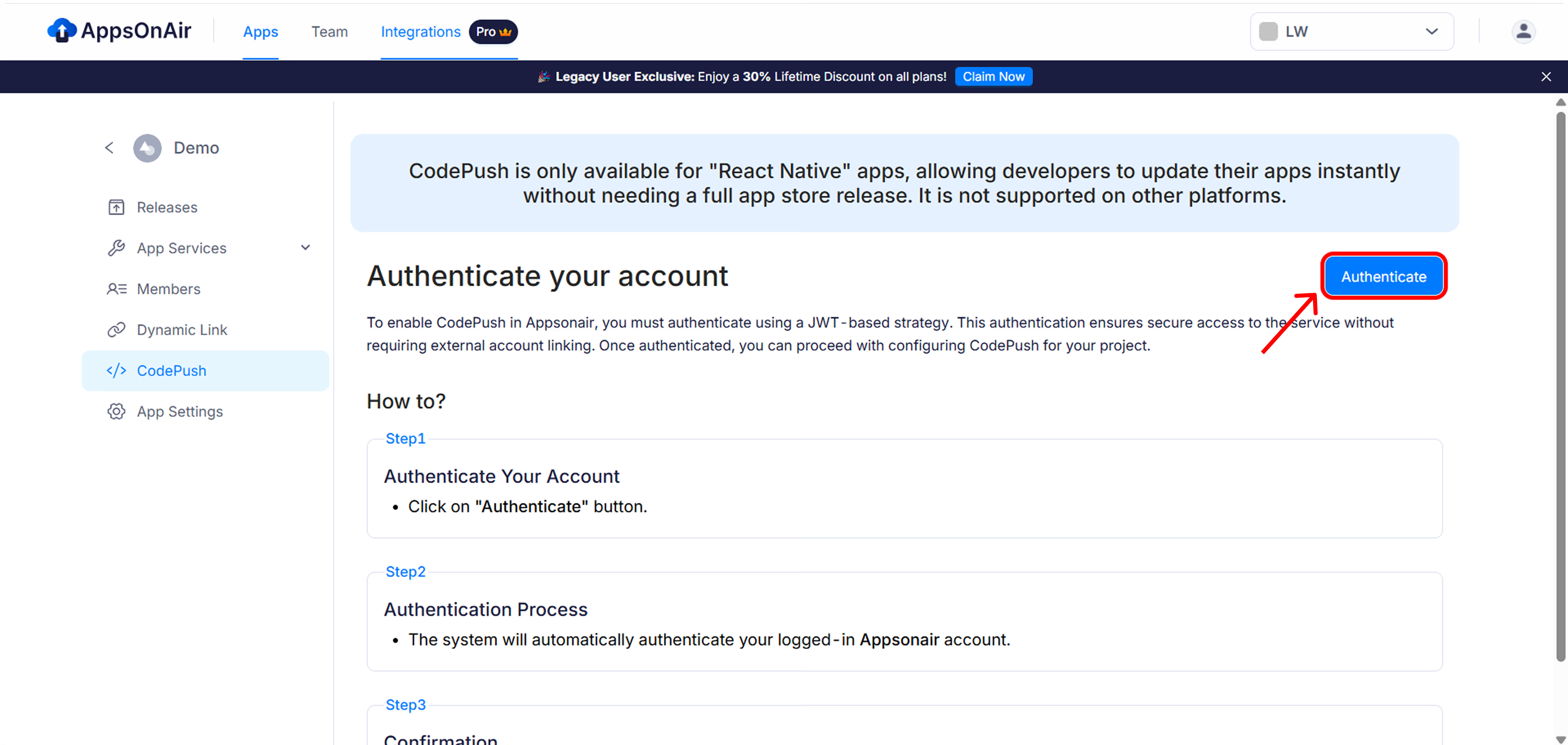
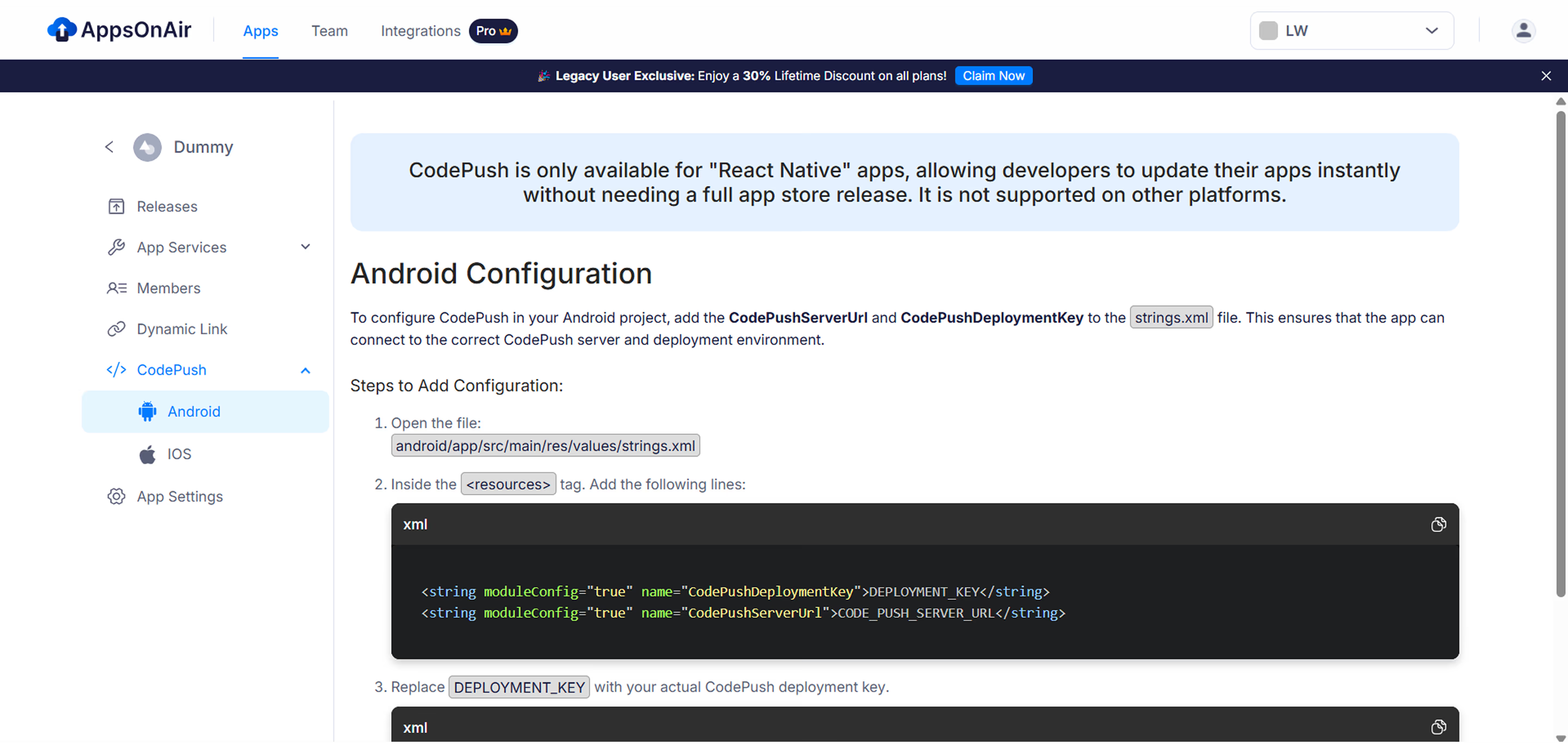
3. Click Generate Deployments, this will create:
A deployment key for Android
A deployment key for iOS
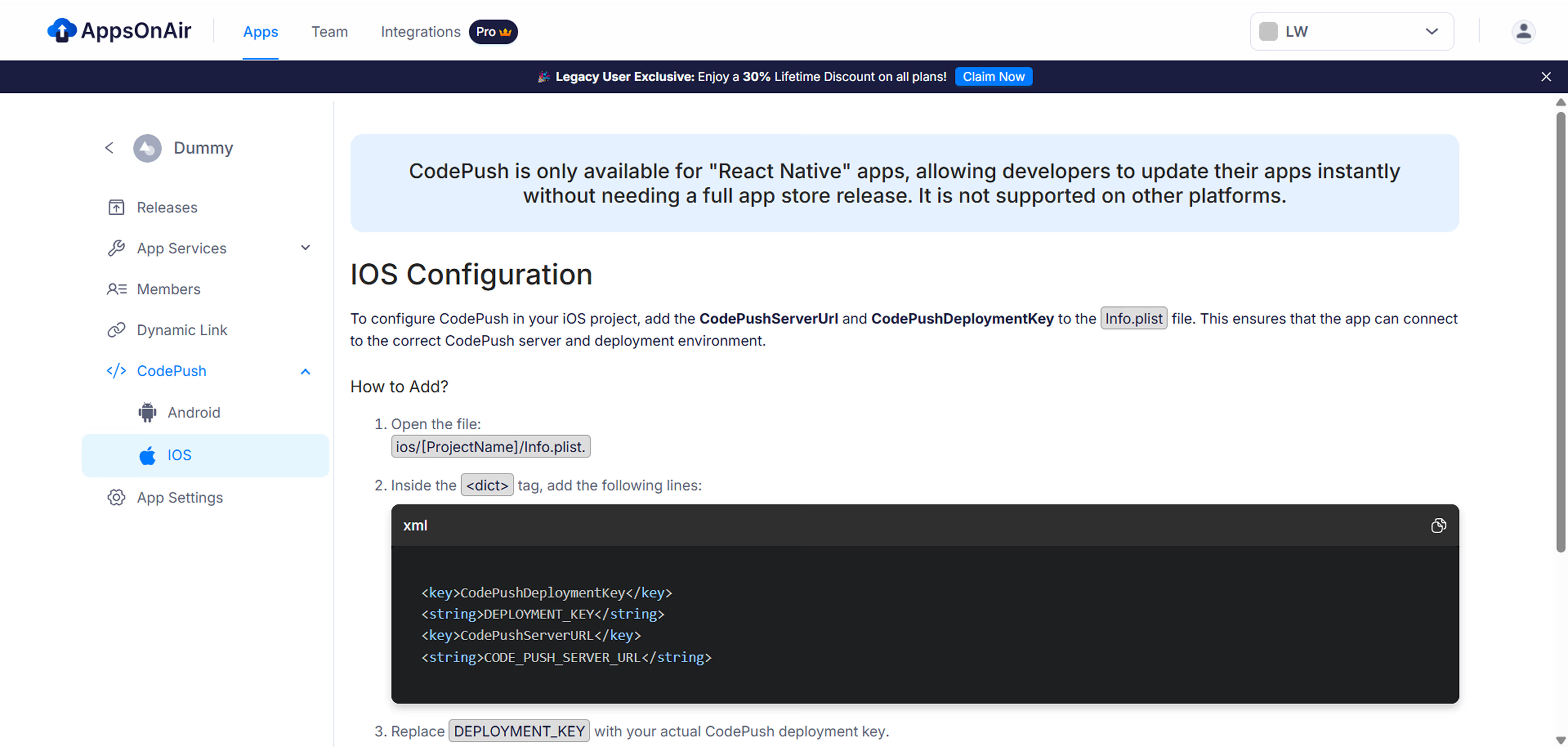
4. Copy the generated deployment keys and server URL – you’ll need them for the next step.
Step 4: Update Your Deployment Keys
Replace your existing CodePush keys with the new AppsOnAir deployment keys.
For Android: Update strings.xml
<resources>
    <string name="CodePushDeploymentKey">NEW_APPS_ON_AIR_DEPLOYMENT_KEY</string>
    <string name="CodePushServerUrl">https://codepush.appsonair.com</string>
</resources>
For iOS: Update Info.plist
<key>CodePushDeploymentKey</key>
<string>NEW_APPS_ON_AIR_DEPLOYMENT_KEY</string>
<key>CodePushServerUrl</key>
<string>https://codepush.appsonair.com</string>
Pro Tip: Ensure these values match your actual deployments to avoid debugging issues.
No SDK Changes Required! 🎉
AppsOnAir CodePush is a drop-in replacement for App Center CodePush. Your existing integration remains intact, simply update the deployment key and server URL, and you're good to go! 🚀:
For React Native < 0.76, use react-native-code-push.
For React Native >= 0.76, switch to @code-push-next/react-native-code-push.
Step 5: Authenticate with AppsOnAir CodePush
Run the following command in your terminal to log in:
appsonair-codepush login
A browser window will open. Authenticate your account, copy the access token, and paste it into the terminal.
appsonair-codepush whoami
Step 6: Deploy an Update
Once set up, you can now release an OTA update using AppsOnAir CodePush.
For Android:
appsonair-codepush release-react workspace-app-android --target-version 1.0.0
For iOS:
appsonair-codepush release-react workspace-app-ios --target-version 1.0.0If everything runs smoothly, congratulations! 🎉 You’ve successfully migrated to AppsOnAir.
Migrate Now & Avoid Last-Minute Rush
The March 31, 2025, deadline may seem far away, but delaying your migration could lead to unnecessary stress.
AppsOnAir CodePush offers:
✅ Minimal migration effort – No changes to your update logic.
✅ No vendor lock-in – Maintain full control of your updates.
✅ Same familiar workflow – Works just like CodePush, but it's better.
Why wait? Start your migration today and ensure a seamless transition! 🚀